Embedding the editor
Mount the FlowDrop visual workflow editor in any web page.
What you'll learn
How to install FlowDrop and mount a blank workflow editor canvas in your application.
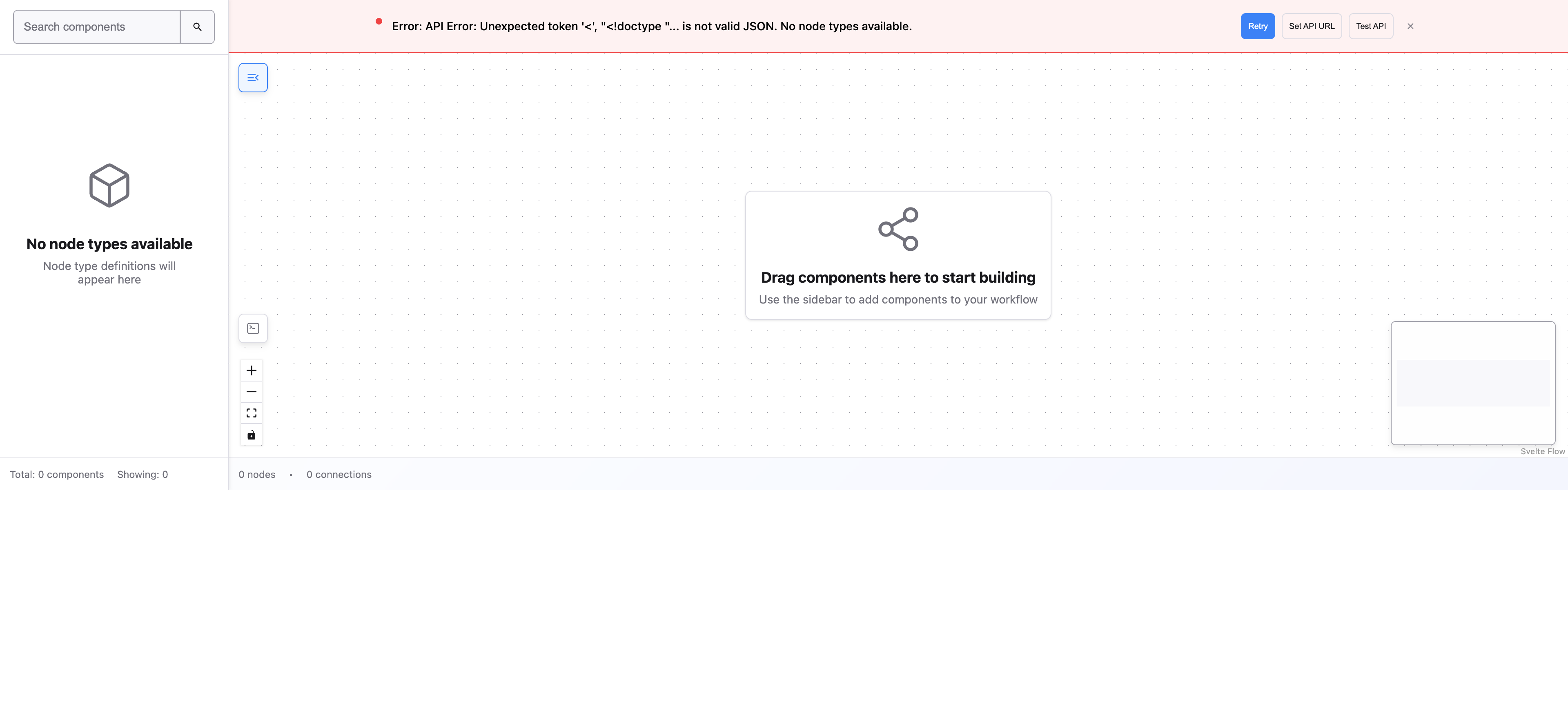
The most minimal FlowDrop setup is just the editor itself: an empty canvas with no nodes in the sidebar and no workflow loaded. Even empty, you can zoom (scroll wheel) and pan (click and drag the background).
Set up a project
FlowDrop's UI is built with Svelte 5, so your bundler needs the Svelte plugin to
compile it — even though you won't write any Svelte yourself. Here's a complete,
working Vite setup; it's exactly what the runnable example
(apps/tutorials/01-embedding-the-editor in the FlowDrop repo) uses.
Install
npm install @flowdrop/flowdrop @iconify/svelte @xyflow/svelte
npm install -D vite @sveltejs/vite-plugin-svelte svelte
Configure Vite
import { defineConfig } from 'vite';
import { svelte } from '@sveltejs/vite-plugin-svelte';

export default defineConfig({
  // FlowDrop ships Svelte components — the plugin compiles them for you.
  plugins: [svelte()],
  // The mount call uses top-level await, which needs a modern target.
  build: { target: 'es2022' }
});
Add a container
<div id="editor"></div>
<script type="module" src="/src/main.js"></script>
SvelteKit users can skip the Vite steps.
Using SvelteKit or another Svelte toolchain? The Svelte plugin is already configured. React and Vue apps need the plugin just like vanilla JS does.
Mount the editor
With the project set up, two imports in your entry file (src/main.js) are all
you need:
import { mountFlowDropApp } from '@flowdrop/flowdrop/editor';
import '@flowdrop/flowdrop/styles';
Then mount it into any container element:
const app = await mountFlowDropApp(document.getElementById('editor'), {
  height: '100vh'
});
That's it. The editor renders a pannable, zoomable canvas with a grid background.
What mountFlowDropApp returns
The mount function returns a controller object you can use later:
const app = await mountFlowDropApp(container, options);

// Check if the user has unsaved changes
app.isDirty();

// Get the current workflow data
app.getWorkflow();

// Clean up when done
app.destroy();
The complete project
Once you've followed the steps above, your project has just four files. This is
the whole thing — the runnable
apps/tutorials/01-embedding-the-editor
example mirrors it exactly:
Run npm run dev (or pnpm dev) and open the printed URL. You'll see the empty
editor canvas:
Using with Svelte
If you're building a Svelte application, you can use the WorkflowEditor component directly:
<script>
  import { WorkflowEditor } from '@flowdrop/flowdrop/editor';
  import '@flowdrop/flowdrop/styles';
</script>

<div style="height: 100vh;">
  <WorkflowEditor />
</div>
What's next
The editor is running, but there's nothing to build with yet. Before adding nodes, you need to tell FlowDrop where your backend API lives.
Tutorial — Step 1 of 5